
File-Based Apps in .NET 10: C# Without the Ceremony
Build a URL uptime checker in a single C# file with .NET 10 file-based apps. No project or solution needed, plus NuGet packages.
Throughout this tutorial we will use Parquet.NET to help us read and write Parquet files. For reading Parquet files, we will use this dataset on sentence similarity. We will also use this structure when writing Parquet files. The full code can be found here.
You’re probably already familiar with loading in data for a machine learning project using CSV or plain text files. Parquet is a different way of storing data. Instead of plain text it is a binary file, so you won’t be able to see the data if you open it in notepad. But how is this any better than plain text?
Since Parquet is stored in binary format that makes it much easier for machines to read the data. Also, since it is in binary, this makes the file sizes much lower. Compare the two exact same datasets. The Parquet one is noticeably smaller than the CSV. Imagine if it were gigabytes of data. Parquet would be a lot smaller and would reduce the amount of compute and the time needed to parse the data.

Not only do the files in Parquet format come out smaller, reading the files is a lot faster as well. For example, say that you had a query that got the average of one column. If it was in a row-based format the query would have to touch every row. But in Parquet, it would only touch the one column, so the processing of that query will be much faster.
As previously mentioned, not only are Parquet files binary instead of plain text, the way it is stored is different than regular CSV files. In CSV files the data is stored in a row-based fashion, where each attribute for a piece of data is in a single row.
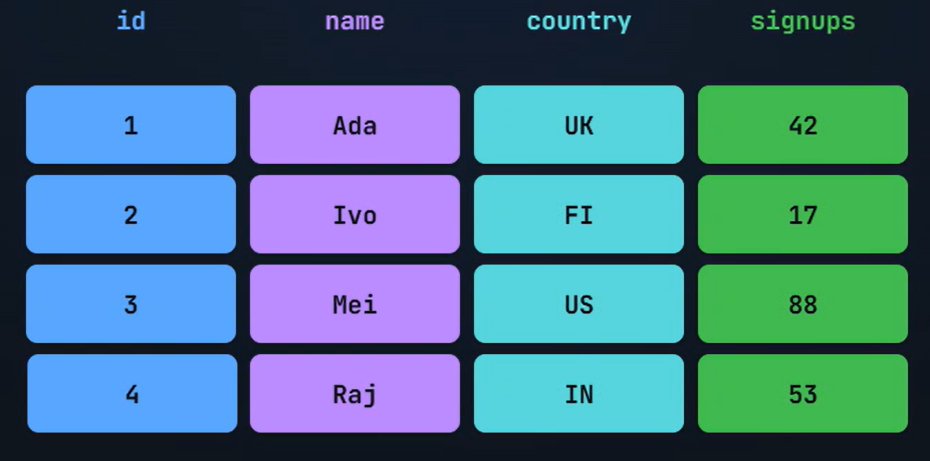
However, Parquet files are stored by column instead of by row.

While Parquet is much more useful on larger amounts of data, we will be using a smaller sample in the code below to help show how Parquet.NET works.
As previously mentioned, Parquet stores data by each column. In order to write to a Parquet file, we must first give it the schema. For this we must define a ParquetSchema. With that we give it a DataField which will be our column names.
var schema = new ParquetSchema(
    new DataField<string>("Sentence1"),
    new DataField<string>("Sentence2"),
    new DataField<double?>("Score")
);
Note that Score is a nullable double?. The nullability in the schema needs to match the class you read the file back into later (the SentenceSimilarity class below uses double?). If they don’t match, reading the file fails with an error saying the nullability is incompatible.
With our schema defined, we can create our data that we want to add to our columns. We will add them as arrays.
var newSen1Data = new[] { "A plane is taking off.", "A man is playing guitar.", "A dog is running in the park." };
var newSen2Data = new[] { "An airplane is taking off.", "A person is playing music.", "A woman is cooking dinner." };
var newScoreData = new double?[] { 0.95, 0.65, 0.10 };
Next, we need to create a stream to create our file to write to with File.Create and give it a file name.
using var writeStream = File.Create("new_similarity.parquet");
Use File.Create rather than File.OpenWrite here. File.OpenWrite doesn’t clear an existing file, so if you write a smaller file over a larger one, the old bytes are left at the end and the Parquet file can end up corrupted.
Using ParquetWriter.CreateAsync we can pass in the schema from earlier and the file stream to create a ParquetWriter.
await using ParquetWriter writer = await ParquetWriter.CreateAsync(schema, writeStream);
Now we need to use the ParquetWriter to create a row group.
using ParquetRowGroupWriter rowGroupWriter = writer.CreateRowGroup();
With the row group writer created, we can now add in to each row group, or column, with our new data.
await rowGroupWriter.WriteColumnAsync(new DataColumn((DataField)schema.Fields[0], newSen1Data));
await rowGroupWriter.WriteColumnAsync(new DataColumn((DataField)schema.Fields[1], newSen2Data));
await rowGroupWriter.WriteColumnAsync(new DataColumn((DataField)schema.Fields[2], newScoreData));
Running this will create a new Parquet file with our new data. The file is only complete once the writer is disposed, so if you want to read it back in the same program, put the writing code in its own using block (or method) first.
If your data is already in objects, Parquet.NET can write the whole file in one line, the same way the high-level API reads it (covered below).
var newRows = new List<SentenceSimilarity>
{
    new() { Sentence1 = "A plane is taking off.", Sentence2 = "An airplane is taking off.", Score = 0.95 },
    new() { Sentence1 = "A man is playing guitar.", Sentence2 = "A person is playing music.", Score = 0.65 },
    new() { Sentence1 = "A dog is running in the park.", Sentence2 = "A woman is cooking dinner.", Score = 0.10 },
};

await ParquetSerializer.SerializeAsync(newRows, "new_similarity.parquet");
The schema comes from the class, so there’s no ParquetSchema to define. The low-level API is still useful when you need full control, such as writing very large data in chunks.
Parquet.NET offers two different ways to read Parquet files; using a low-level API that offers more control on how you want to read in the files and an easier high-level API.
For the low-level API to read Parquet files, we first need to open the file that we want to read and then create a new ParquetReader instance.
using var stream = File.OpenRead("train.parquet");
using var reader = await ParquetReader.CreateAsync(stream);
From here we can get what the schema from the file looks like just by looking at the Schema property on the reader. This can also help us determine how to create our class to capture the data from the Parquet file if we wanted to use it to create a CSV file or store it in a database.
Console.WriteLine(reader.Schema);
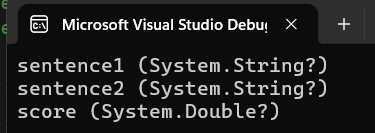
We can now dynamically get the schema with the reader.Schema.GetDataFields method. A DataField is essentially a column in the file.
DataField[] dataFields = reader.Schema.GetDataFields();
Since we will eventually write this data to a CSV file, we will go ahead and create an object to hold the data from the file as we read it. This was based off the schema that we got earlier.
public class SentenceSimilarity
{
    public string? Sentence1 { get; set; }
    public string? Sentence2 { get; set; }
    public double? Score { get; set; }
}
Now that we have this object, we can instantiate a list of these to hold the data as we read it.
List<SentenceSimilarity> sentenceSimilarities = new();
Now we need to loop through all of the columns to get the data. This is a bigger chunk of code so we’ll put it here and then go over it.
for (int i = 0; i < reader.RowGroupCount; i++)
{
    using ParquetRowGroupReader rowGroupReader = reader.OpenRowGroupReader(i);

    var sen1 = await rowGroupReader.ReadColumnAsync(dataFields[0]);
    var sen2 = await rowGroupReader.ReadColumnAsync(dataFields[1]);
    var similarity = await rowGroupReader.ReadColumnAsync(dataFields[2]);

    int rowCount = sen1.Data.Length;

    for (int j = 0; j < rowCount; j++)
    {
        sentenceSimilarities.Add(new()
        {
            Sentence1 = sen1.Data.GetValue(j)?.ToString(),
            Sentence2 = sen2.Data.GetValue(j)?.ToString(),
            Score = similarity.Data.GetValue(j) is null
                ? 0
                : Convert.ToDouble(similarity.Data.GetValue(j))
        });
    }
}
For each row group, or a chunk of data that Parquet partitioned and stored inside the file, we do the OpenRowGroupReader on it and from there we read the row group and then read the column based off the data field we got earlier. Then, for each of those data counts we get the values and store them into our list of data.
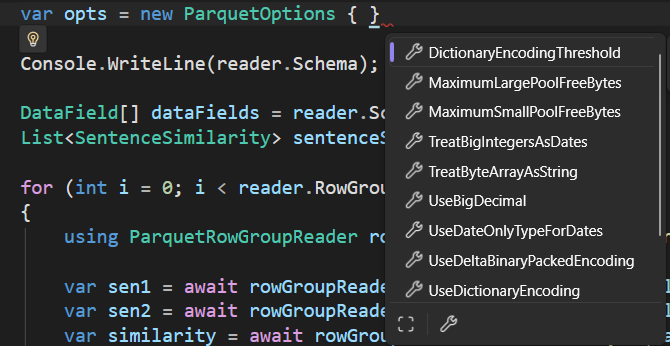
With this being the low-level API, there are several options we could put in depending on the Parquet file and how it was created. When using the ParquetReader.CreateAsync method there is an overload where you can put in a ParquetOptions object.
The high-level API is much easier. In fact, it can be in just one line of code.
var sentenceSimilaritiesHighLevel = await ParquetSerializer.DeserializeAsync<SentenceSimilarity>(
    "train.parquet", new ParquetSerializerOptions { PropertyNameCaseInsensitive = true });
If you’re familiar with JSON deserialization into an object, this is the same concept with Parquet files. We use the ParquetSerializer and deserialize into the SentenceSimilarity object. We pass in the PropertyNameCaseInsensitive as true because the casing in the file may not match the casing that we have in our object.
Now that we have read our data, let’s use it to create a CSV file so we can read it in ML.NET or perform analytics on it. The easiest way to do this is to use the CsvHelper package.
Since we already have the data in memory as an object, this is quite easy to do. First, we’d need to create a new StreamWriter.
using var writerHighLevel = new StreamWriter("similarity.csv");
From there, we can create an instance of the CsvWriter class using that stream.
using var csv = new CsvWriter(writerHighLevel, System.Globalization.CultureInfo.InvariantCulture);
And the last thing to do is to write the records from our object.
csv.WriteRecords(sentenceSimilarities);
And that’s all there is! The CsvHelper package does all of the heavy lifting for us including handling quotes that may break CSV files if they aren’t handled correctly.
I hope this post helps you understand Parquet files better and gives some insight into how to interact with them with C#. The pros, including smaller file sizes and easier for machines to read, help offset the cons where we can’t easily read the files without some processing. The reading and writing of Parquet files, as we showed, could be taken a step further to read and write data in Azure Blob storage. Or, as we’ll see in a future post, we can use this to take training data to build an ML.NET model.
Build a URL uptime checker in a single C# file with .NET 10 file-based apps. No project or solution needed, plus NuGet packages.